
How to Create Your Own Private WireGuard VPN on a VDS Server (Fast, Stable, and Nearly Unblockable)
Quick answer: rent a small VPS, deploy WireGuard, create one client profile for each device, import the configuration into the official WireGuard app, and connect through your own dedicated IP. In practice, this is often more stable and less likely to be blocked than public VPN services that reuse the same shared IPs for thousands of users.
Public VPN services suffer from one fundamental flaw: shared IP addresses. When thousands of people exit the internet through the same IP, streaming platforms, banking services, corporate systems, and geo-restricted websites quickly flag that IP as “VPN traffic” and block it. The result is predictable: even after paying for a VPN, many websites still refuse to load, apps complain about region restrictions, and streaming platforms ban the connection entirely.
The practical solution is to run a personal VPN server with a clean, dedicated IP that belongs only to you. With this setup, your VPN behaves much more like a normal household or office connection. For many real-world use cases, this gives you a connection that is stable, private, fast, and significantly harder to block than mass-market VPN services.
In this step-by-step guide, we will deploy WireGuard VPN on a virtual dedicated server (VDS). The installation is simple because the server image includes a ready-made web interface, so even beginners can follow along. If you later want to compare alternatives, RebootTools also covers OpenVPN, OpenConnect, Outline VPN, and SoftEther VPN.
Who This Guide Is For
- Users tired of public VPN services being blocked by websites and apps
- People who want a private VPN with their own dedicated IP address
- Users who need stable access to restricted websites or services
- Developers, sysadmins, and remote workers who want direct control over their VPN
- Anyone who prefers a simple WireGuard setup on a VPS instead of a shared commercial VPN
Before You Start
- A rented VPS or VDS with a public IP address
- Basic access to the hosting control panel
- The official WireGuard client on your phone or desktop
- A stable internet connection during setup
- A server location that matches your use case, such as the Netherlands for good connectivity in Europe
You can use many VPS providers for this. In this guide, the screenshots and workflow are based on VDSina, which offers a ready-to-deploy WireGuard image and a simple control panel. The key requirement is not the brand name itself, but a provider with stable networking, a clean IP range, and reasonable performance in the region you need.
Private VPN vs Public VPN
Private VPN: one dedicated IP, predictable performance, far lower chance of IP reputation problems, and full control over who uses the server.
Public VPN: shared IP pools, higher chance of streaming and banking blocks, more users per exit node, and less control over reputation.
That difference is the main reason many users eventually move from commercial VPN apps to a personal WireGuard server. A private VPN is not “magic,” but it removes the biggest weakness of public VPN services: shared exit traffic.
Why We Recommend VDSina (With Discount Link)
In this walkthrough we are using VDSina because the service makes deployment simple and provides a ready-to-use WireGuard web image. For a tutorial like this, ease of deployment matters: you do not need to build the entire VPN stack manually from scratch.
VDSina is convenient for this guide because it offers:
- Simple VPS deployment through a web control panel
- A ready-made WireGuard server template with web management
- European locations such as the Netherlands
- Affordable server plans for personal VPN use
You can rent a server using our partner link:
Rent a Netherlands VDS for Your Private VPN
A small or mid-tier server is enough for most personal WireGuard setups. In many cases, one VPS can easily handle your phone, laptop, desktop, and a few additional profiles for close family members.
Performance and Speed
One of the main reasons to choose WireGuard is speed. Compared with older VPN protocols, WireGuard is lightweight and efficient, which usually translates into lower overhead, better throughput, and more stable latency on the same VPS. On a decent server with a good route to your location, you can often get performance that feels close to a normal connection.
Actual speed depends on four things: server location, VPS network quality, your home/mobile internet, and the websites or services you are connecting to. That is why choosing the right region matters. If your audience is in Europe, a Netherlands server is often a practical starting point.
1. Create a WireGuard Server in Your Hosting Panel
Log in to your VDSina control panel and click + Create Server.

Choose the WireGuard VPN (Ubuntu 22 Web) template. This image includes a ready-to-use web interface for managing your VPN clients.

Select a Netherlands location. Backups are optional and can be disabled if you want to reduce monthly cost.

Click Create and wait 1–3 minutes while the server deploys.
2. Access the WireGuard Web Interface
When the server is ready, open the Access tab.

Reveal and copy your password, then click the server IP address to open the WireGuard web panel.

3. Create a VPN Client Profile
In the panel, click + New client.

Name the client profile something clear, such as phone, laptop, desktop, or your own name.

The profile is created instantly. You can generate as many profiles as you need, ideally one per device. This is the cleanest way to manage access later.
4. Install WireGuard on Your Phone
Install WireGuard from the App Store or Google Play.
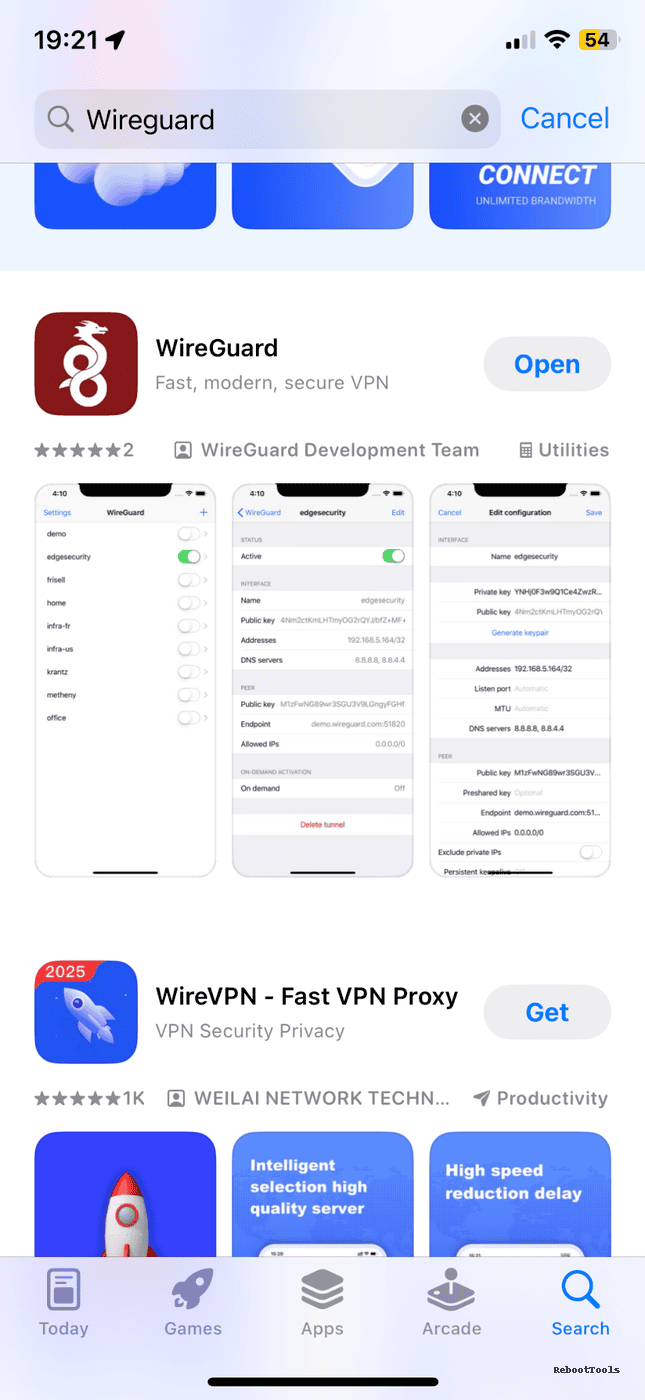
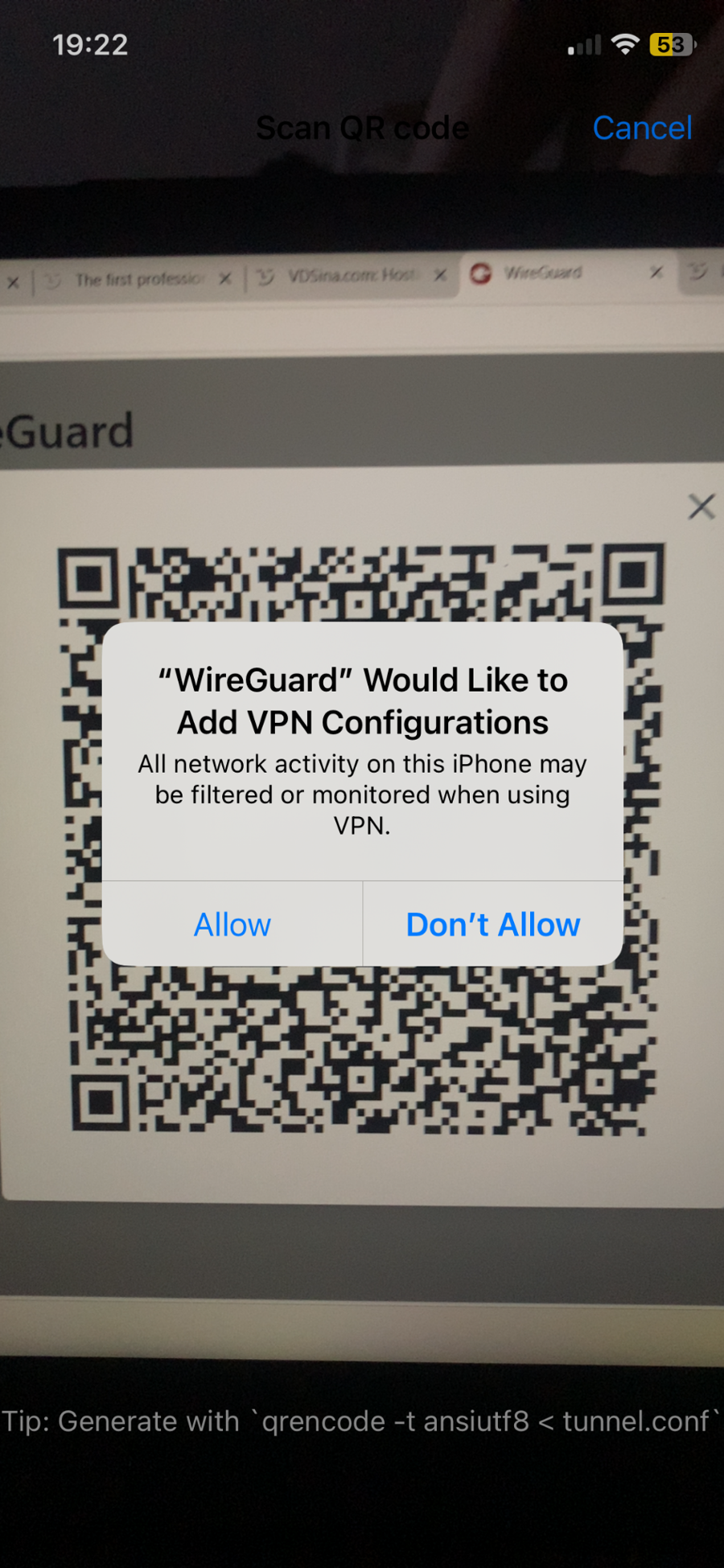
Open the app, tap Add Tunnel, and choose Scan from QR Code.

In the web panel, click the QR icon for your newly created client.

Scan the QR code with your phone. The tunnel will import immediately.

Activate the connection.
5. Verify Your IP Address
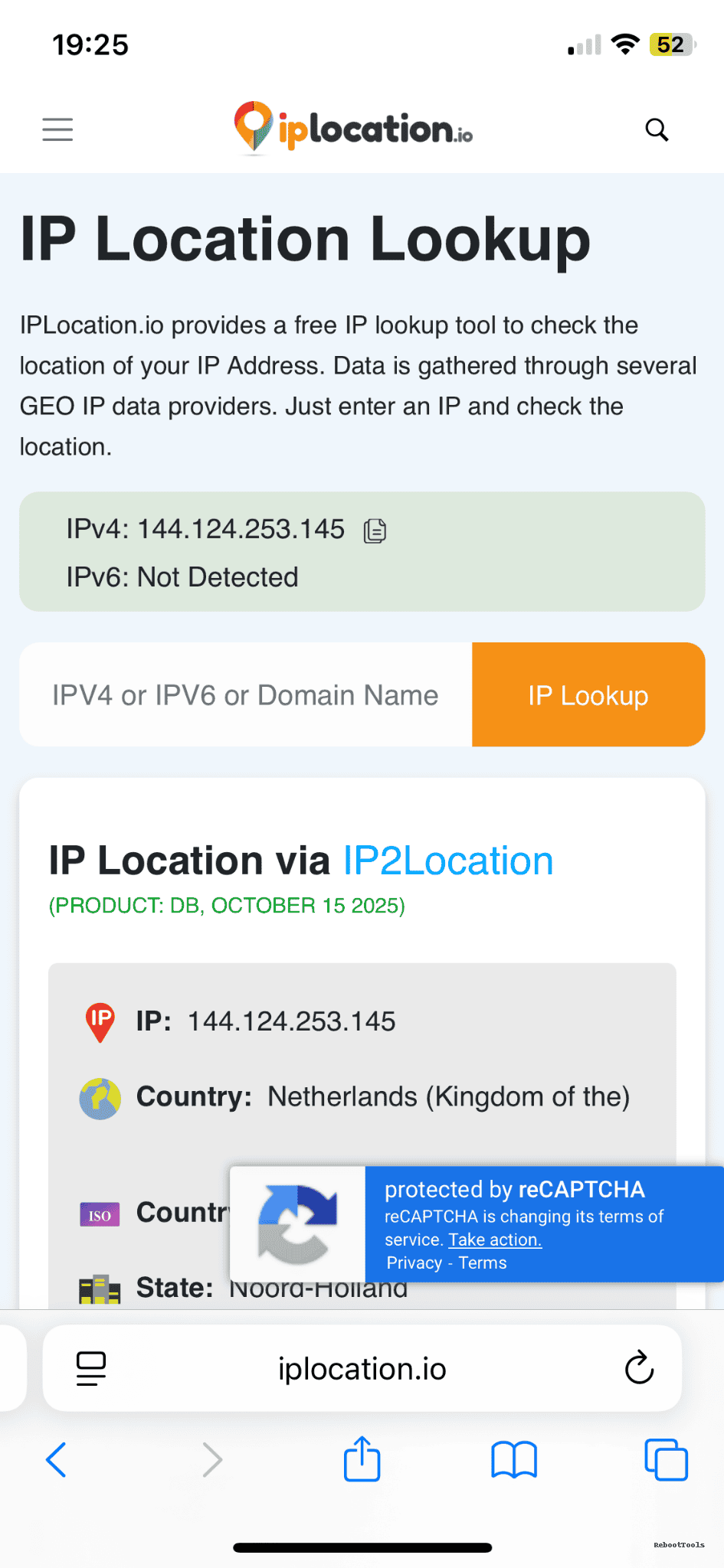
Search for “what is my IP” or use any IP lookup site. You should now appear as if you are connecting from the Netherlands server.
6. Set Up WireGuard on Desktop
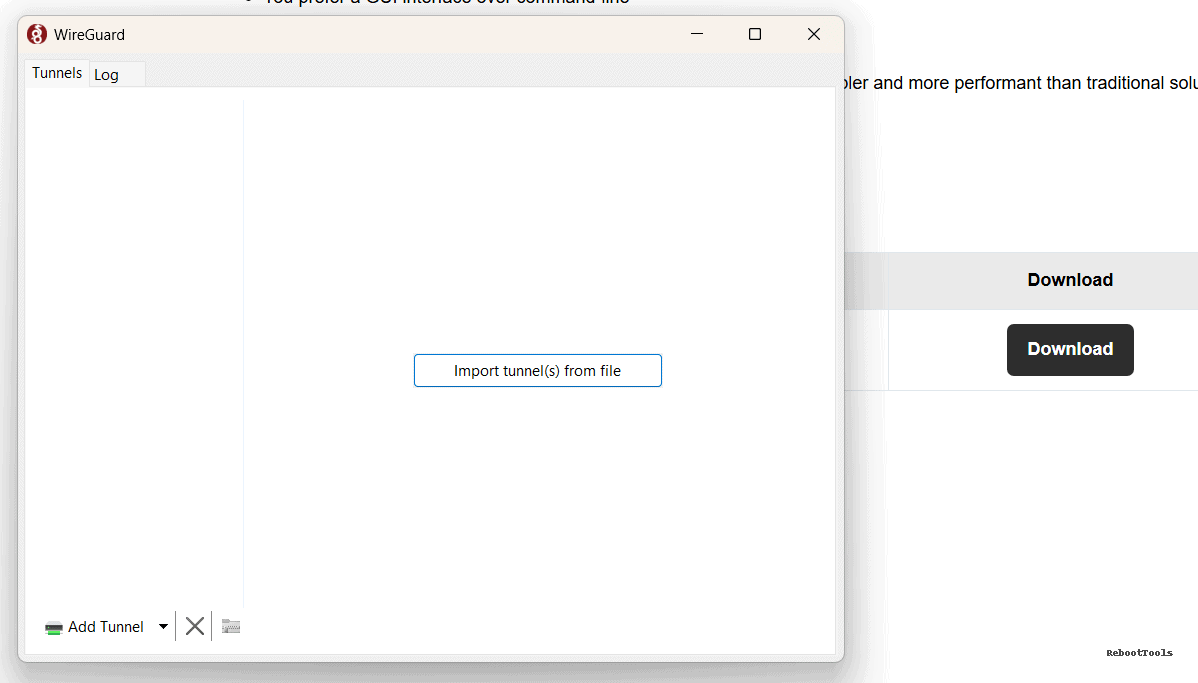
Download the official client here: WireGuard for Windows and macOS

Open the app, choose Add Tunnel, import the configuration file, and activate the connection.


Real Use Cases for a Personal WireGuard VPN
- Accessing websites that block public VPN IP addresses
- More stable streaming access compared with shared VPN services
- Safer browsing on public Wi-Fi with your own encrypted tunnel
- Using one private VPN for your phone, laptop, and desktop
- Remote access to your own services through a private tunnel
This is the biggest difference between a personal VPN and a public VPN subscription. You are not competing with thousands of other users for the same exit IP reputation.
Why a Personal VPN Is Harder to Block
Your VDS uses a clean, private, unique IP. To most websites, that can look much closer to a normal residential or small-office connection than a heavily reused public VPN exit node. As a result, many services that routinely block commercial VPNs are less likely to interfere with your personal VPN connection.
With your own WireGuard VPN, you typically get:
- ✔ More consistent access to websites and services
- ✔ Stable ping and predictable speeds
- ✔ Encrypted browsing through infrastructure you control
- ✔ Better long-term reliability than shared VPN exit nodes
Risks and Limitations
- Some websites may still detect and restrict VPS traffic depending on IP reputation
- You are responsible for your own server and client access management
- A private VPN is not the same as anonymity; it is mainly about control, stability, and privacy in transit
- Provider quality matters: poor routing or abused IP ranges can reduce results
This is important: a personal WireGuard VPN is excellent for stability and control, but it does not turn you into an anonymous user by itself. If anonymity is your main goal rather than a stable private tunnel, Tor Browser serves a different purpose.
Alternative Privacy Tools (OpenVPN, Outline, SoftEther, Tor)
WireGuard is one of the fastest and simplest modern VPN protocols, but it is not the only option. Depending on your needs, you may also want to explore:
- OpenVPN — classic and widely supported VPN protocol
- OpenConnect — Cisco-compatible and enterprise-friendly
- Outline VPN — simple privacy server for small teams
- SoftEther VPN — flexible multiprotocol VPN platform
- Tor Browser — anonymous browsing through the Tor network
If your priority is pure speed and simplicity for personal use, WireGuard is usually the best place to start. If compatibility with legacy environments matters more, OpenVPN or OpenConnect may fit better.
Useful Links
- Rent VDSina Server
- WireGuard (official client)
- OpenVPN
- OpenConnect
- Outline VPN
- SoftEther VPN
- Tor Browser
- Full Software Catalog
Need Help?
If something does not work or you have questions about setting up your personal WireGuard VPN, contact us through the website feedback form. We can help you troubleshoot the setup, choose the right client configuration, or compare WireGuard with other VPN options covered on RebootTools.