
Create Hiren’s BootCD USB with Rufus
Download Rufus from our Rufus page and download Hiren’s BootCD PE ISO from our Hiren’s BootCD page. This step-by-step guide with screenshots shows how to create a bootable USB with Rufus and reliably boot Hiren’s BootCD PE on both UEFI and legacy systems.
Rufus is one of the most reliable tools for creating bootable USB drives because it correctly handles partition schemes, file systems, and Windows PE bootloaders. This guide focuses on a safe, compatible configuration that works on most PCs, with clear fallback options if the USB does not boot on the first attempt.
Requirements
- USB flash drive (8 GB or larger, all data will be erased)
HBCD_PE_x64.iso(Hiren’s BootCD PE image)- The latest version of Rufus
Step 1 — Launch Rufus
Insert your USB flash drive and run Rufus. Make sure the correct device is selected under Device. Double-check this step to avoid wiping the wrong drive.
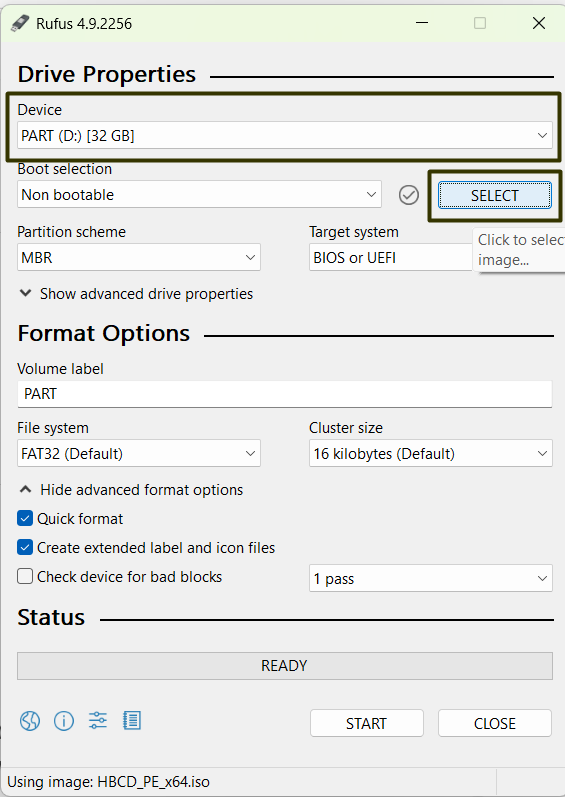
Step 2 — Select the Hiren’s BootCD ISO
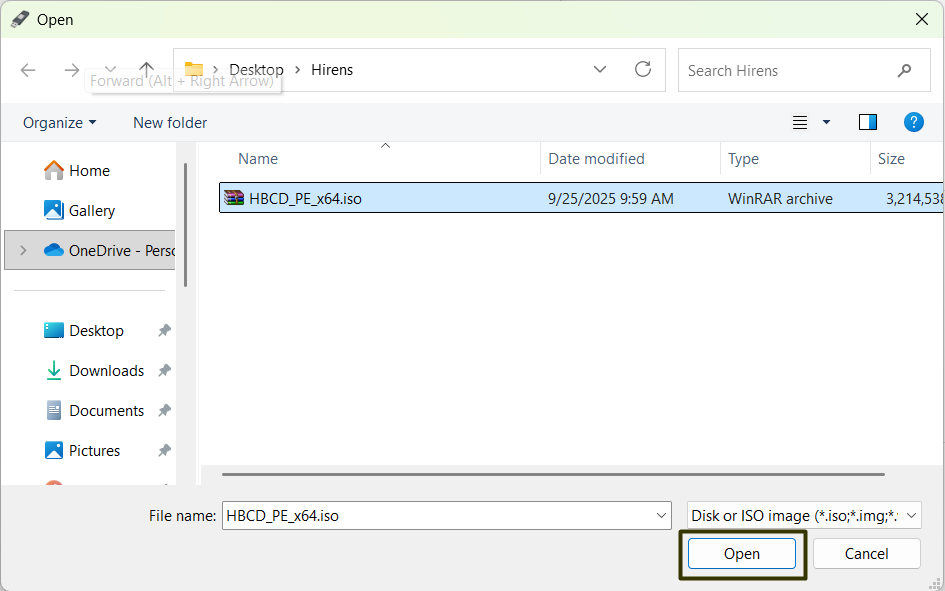
Click Select and choose the HBCD_PE_x64.iso file.
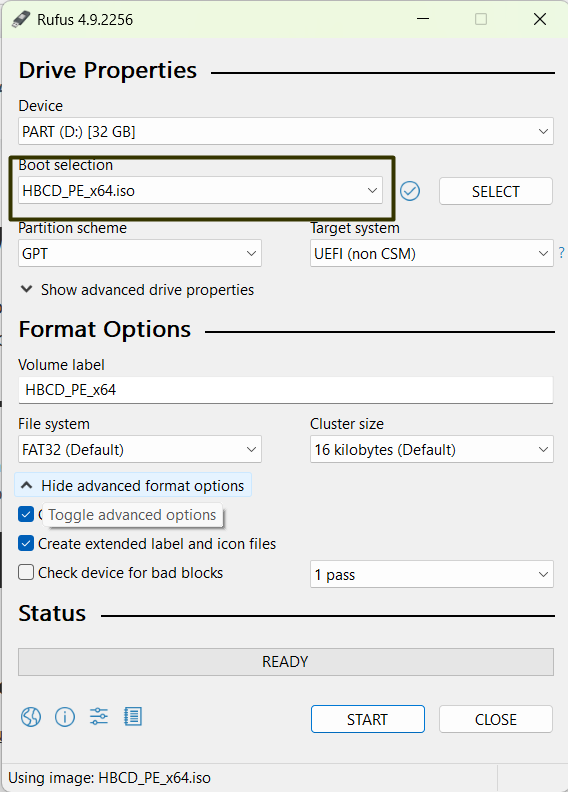
Rufus will automatically analyze the image and suggest compatible settings.
Step 3 — Configure Rufus Options
Rufus usually auto-fills the correct values, but it is important to understand what each option means in case troubleshooting is needed.
- Partition scheme:
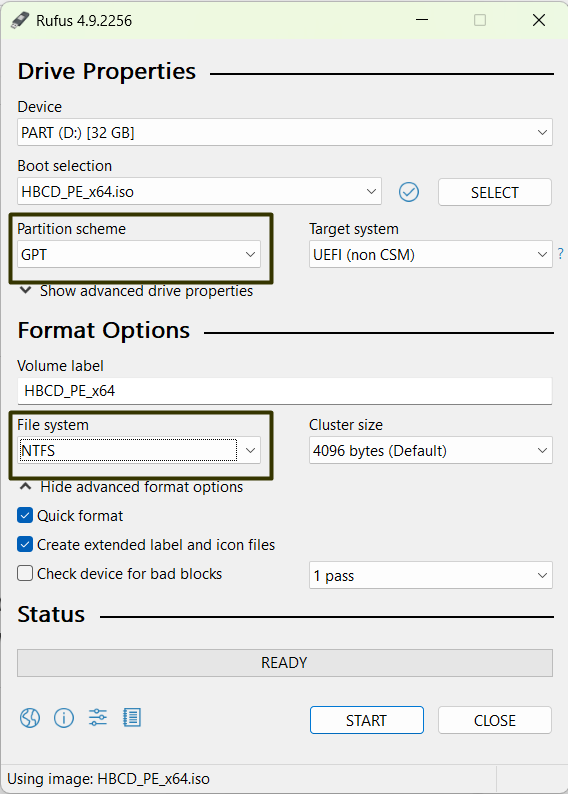
- GPT — recommended for modern UEFI systems (most PCs after 2012).
- MBR — use for legacy BIOS systems or maximum compatibility.
- Target system:
- UEFI (non CSM) — preferred for modern hardware.
- BIOS or UEFI — fallback option for older machines.
- File system:
- NTFS — recommended (Hiren’s BootCD PE ISO is larger than 4 GB).
- FAT32 — use only if NTFS fails to boot on your system.
Recommended setup: GPT + UEFI + NTFS. If the USB does not boot, recreate it using MBR or FAT32.
Step 4 — Confirm Warnings
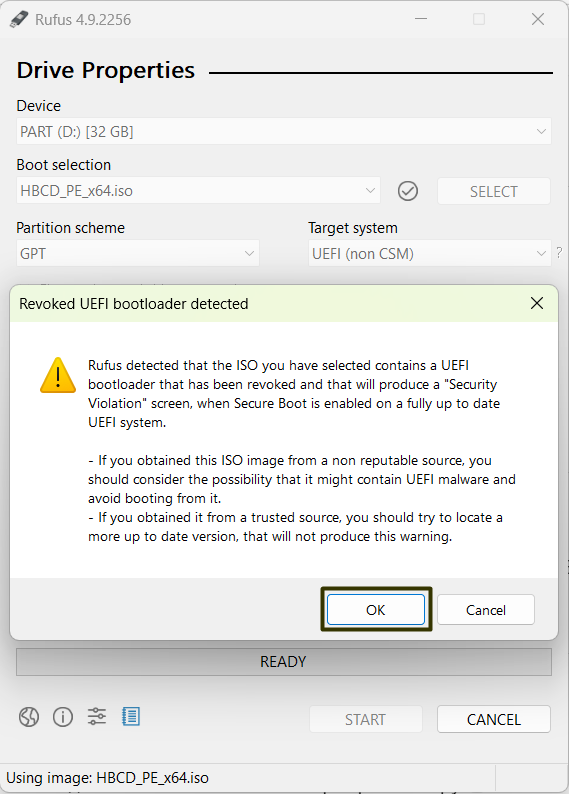
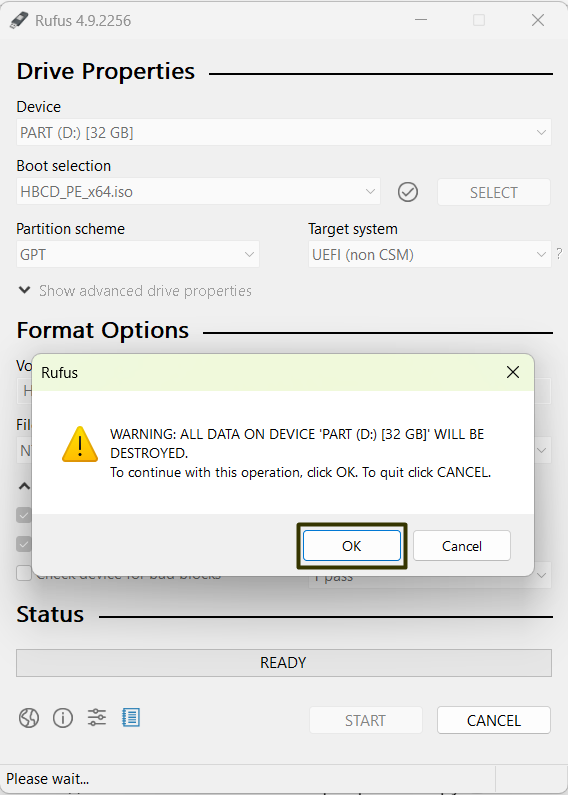
Click Start. Rufus may display the following warnings:
- UEFI bootloader warning: Hiren’s BootCD PE uses a Windows PE bootloader that is not Secure Boot signed. This is normal. Press OK and disable Secure Boot later if required.
- Data loss warning: Rufus will erase all data on the selected USB drive. Confirm only after verifying the correct device.
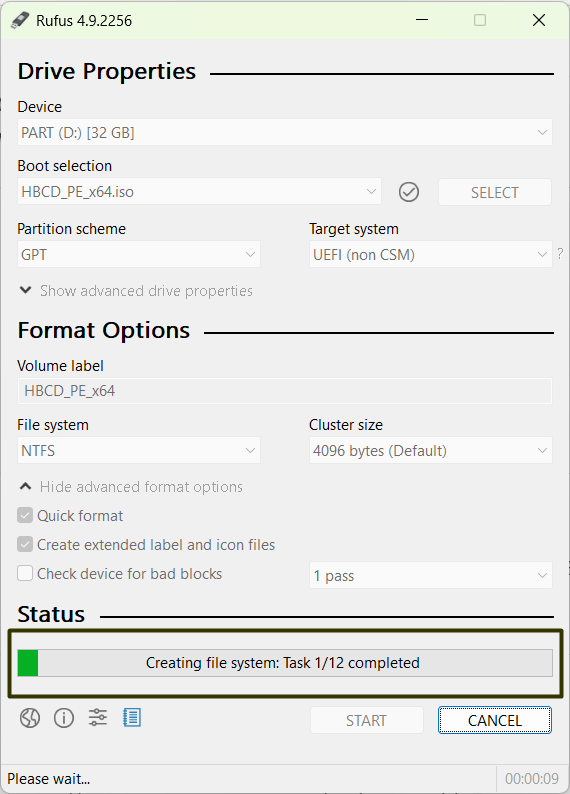
Step 5 — Writing the USB
Rufus will now write the ISO to the USB drive. This process usually takes 5–15 minutes, depending on the speed of the flash drive.
While waiting, you can explore more utilities in our software catalog.
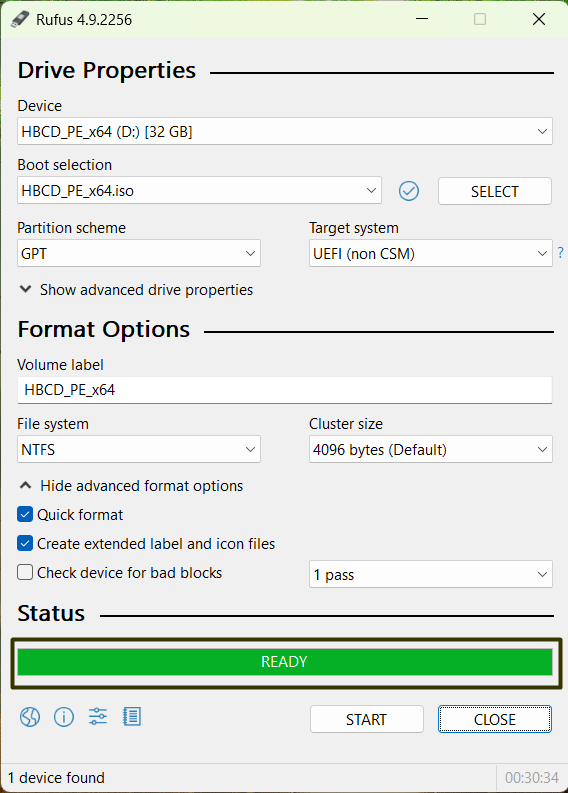
Step 6 — Completion
When the status shows READY in green, the bootable USB is finished. Safely eject the flash drive before removing it.
Booting from the USB Drive
- Enter BIOS/UEFI: Restart the PC and press
DEL,F2,ESC, orF12. - Disable Secure Boot: In BIOS/UEFI, set Secure Boot to Disabled. Some systems also require disabling Fast Boot.
- Select the USB drive in the boot menu or boot priority list.
- Troubleshooting: If the USB does not boot, recreate it using MBR or FAT32.
Next Steps After Booting
After booting into Hiren’s BootCD PE, you gain access to dozens of tools for backup, recovery, password reset, and hardware diagnostics. To avoid data loss, consider creating a full backup before making changes.
FAQ – Common Questions
Can I use Ventoy instead of Rufus?
Yes, Ventoy can boot Hiren’s BootCD PE without rewriting the USB each time.
However, Rufus is often more reliable for single-purpose recovery USB drives.
Why doesn’t Hiren’s BootCD PE boot with Secure Boot?
The Windows PE bootloader used by Hiren’s BootCD PE is not Secure Boot signed.
Disabling Secure Boot is required and expected.
NTFS or FAT32 – which one should I choose?
NTFS is recommended due to the ISO size. FAT32 may work on some systems
but has file size limitations.
MBR or GPT?
GPT is best for modern UEFI systems. Use MBR if you experience boot issues.
Does Rufus erase everything on the USB?
Yes. All existing data on the selected USB drive will be permanently erased.